

As WordPress developers or designers we need to migrate or move our WordPress website from one server to another web server on regular basis.
If you have developed your WordPress website on a production server & now you need to move your website to a deployment server. You can migrate a website using a manual process or an Automatic process with the help of Plugins.
Manually Migrating a WordPress website is not that complicated if you follow simple steps. In this article, I’ll show the best way to migrate your website manually, step by step. We will also discuss which plugins you can use to migrate your WordPress website.
- 1. Take a Manual Backup of WordPress Files
- 2. Take a Backup of the WordPress Database
- 3. Create a new database
- 4. Update new website details in the database & import SQL backup
- 5. Upload all files to the new server/hosting
- 6. Configure new details in wp-config
- 7. Final Check & Most common errors after Migrating the website
1. Take a Manual Backup of WordPress Files
The first thing you need to do is copy all your WordPress website files. To do this you’ll need FTP account details & FTP tool to download files from the server. If you don’t have any FTP tool, then you can use free tools such as FileZilla, WinSCP for Windows-based systems or Cyberduck for mac.
Once you connect your website server via FTP you need to navigate to the root folder, which contains all files of your website. It’s usually called either public_html or www or is named after your site.
Now right-click the root folder & choose the download option.
This will start downloading files to your local computer. It will take some time to download all files.
Quick Hack
If your hosting provider has provided you cPanel account for your website hosting then I’ll tell you Quick Hack to take a backup of all files. It’s much faster than downloading files using FTP.
- Login to your cPanel Account
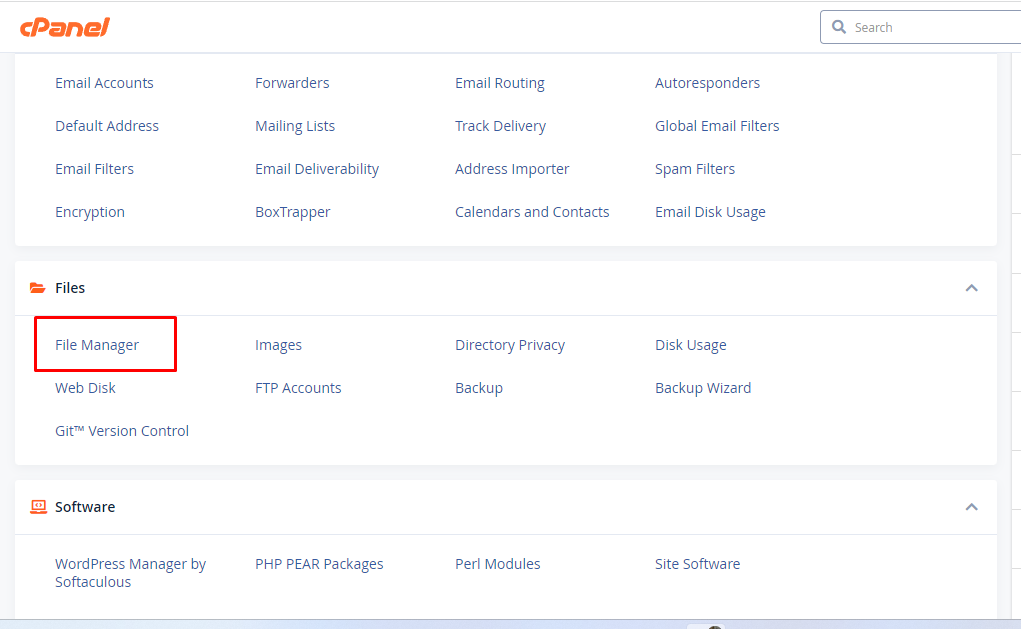
- Navigate to File Manager
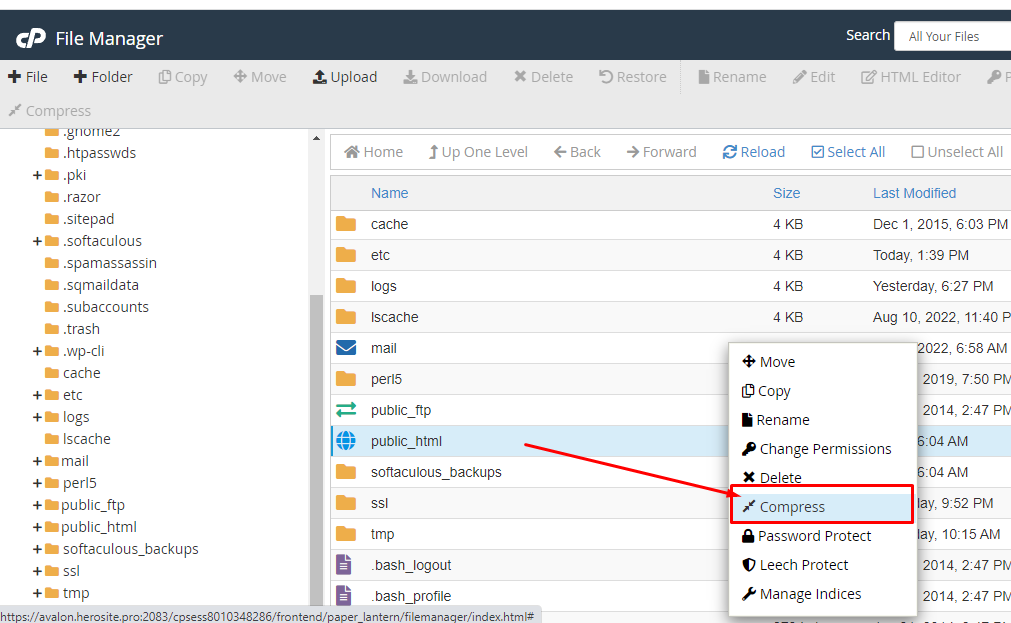
- Now you will find folder name public_html or www or is named after your site.
- Right-click that folder & click on the Compress option.
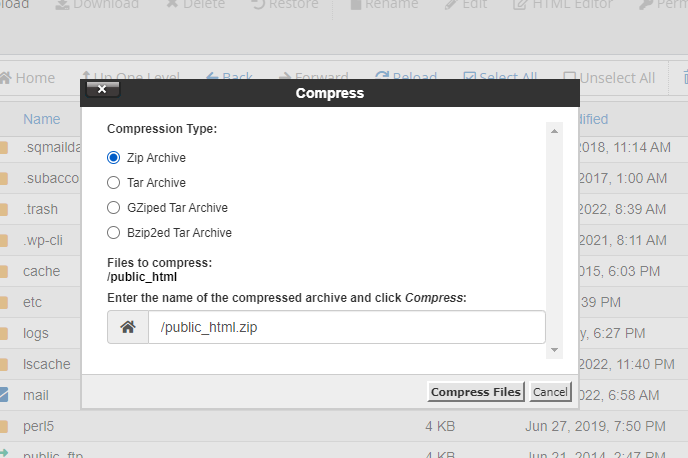
- Select the compression option Zip Archive
- It’ll quickly create a zip file with folder_name.zip
- That’s it! Your file backup is ready to download.
2. Take a Backup of the WordPress Database
You should now back up the database. This is where you will find information about your site’s content, users, and much more.
You’ll need to access your database to complete this. Most web hosts provide this feature through your control panel. If you’re using cPanel, for example, you’ll find a Databases section. You’ll want to select the phpMyAdmin option in that section:
Quick Steps
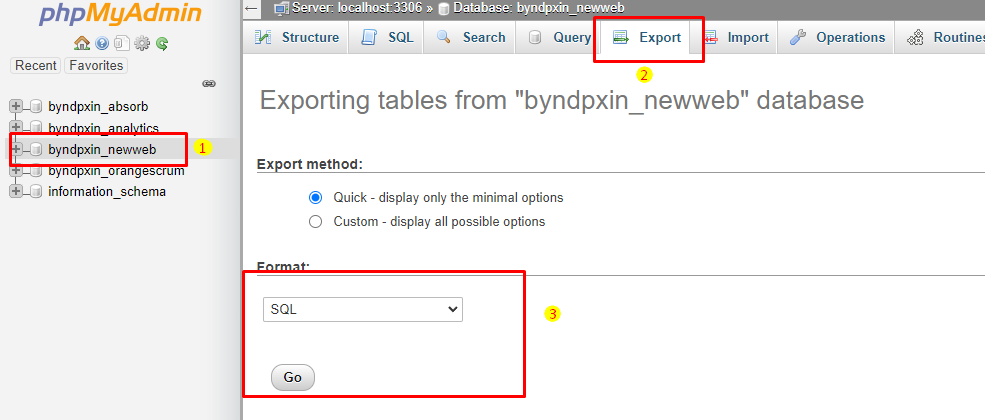
- Navigate to the phpMyAdmin section in cPanel
- Select the Database of your website which you want to download
- Go to the Export option
- Select the Quick export method with SQL format & hit Go
- This will download a copy of your site’s database in .sql format.
3. Create a new database
The next step is to create a new database on the web host you’re moving to. Then you’ll import the file from your previous database, which will overwrite the new one’s contents.
If your new WordPress host also uses cPanel, you’ll need to do the following:
- In cPanel, navigate to the Databases section and select MySQL Databases.
- From the same tab, create a new database and add a user to it (and take note of the names for later use).
4. Update new website details in the database & import SQL backup
If you are migrating your website from one hosting provider to another hosting provider while keeping the same domain name then you don’t have to any changes in the database.
But if you are moving your WordPress website to a new domain eg. Oldwebsite.com to Newwebsite.com. Usually, this happens when you are developing a website on a production server for testing & demo purposes. Once all changes are done you need to move the website to your actual domain name. Or in case you are completely rebranding & changing the domain name then you have to migrate the website.
So let’s check step by step how I do for my projects if I want to change the domain name while migrating the website,
(Note: Take a backup of the .sql file before doing this step.)
Update database for new website URL
- Access the new database using phpMyAdmin, as you did during step 2.
- Go to the Import tab within the new database, and upload the .sql file from your backup.
- Once the database is successfully uploaded, select the database then run some SQL updates and replacement commands on the tables notably, wp_options, wp_posts, and wp_postmeta.
- Use the code as below and swap in your old and new URLs, no trailing slashes. Also if necessary change the table prefix values where applicable (ie wp_ )
UPDATE wp_options SET option_value = replace(option_value, 'http://www.oldurl', 'http://www.newurl') WHERE option_name = 'home' OR option_name = 'siteurl';

UPDATE wp_posts SET guid = replace(guid, 'http://www.oldurl','http://www.newurl');

UPDATE wp_posts SET post_content = replace(post_content, 'http://www.oldurl', 'http://www.newurl');

UPDATE wp_postmeta SET meta_value = replace(meta_value,'http://www.oldurl','http://www.newurl');
That’s it! Now your database is ready for the new website. In the next step, we will check how to upload website files to the new server.
5. Upload all files to the new server/hosting
To upload all files to the new server you will need to connect the server via FTP same as we connected the old server in Step 1.
Right-click anywhere within that folder and choose Upload. Locate the folder you downloaded in the first step, open it, and select all of the files and directories contained within it.
Because we’re dealing with hundreds of files, the upload process may take some time. However, if you’re patient, you’ll soon find yourself almost at the end of the journey.
Quick Hack
- Do you remember we downloaded files in zip format? If you have downloaded files using FTP then try to zip all files.
- If the zip file size is within the Max upload size then use File Manager to upload the file. Login to your cPanel Account
- Navigate to File Manager
- Now you will find folder name public_html or www or is named after your site.
- Click on the Upload option under File Manager
- Drop or Select files using file uploader to Upload
- Once a file is uploaded successfully you can unzip/ Extract the file.
6. Configure new details in wp-config
Now if as your all files are moved to the new server, a database is also uploaded with new domain name details. If you try to visit your website now it’ll not work because you need to update database details in wp-config.php. So that it’ll start using our updated database.
Let’s check how to update wp-config.php if you are using cPanel,
- Navigate to File Manager
- Now you will find folder name public_html or www or is named after your site.
- Try to locate the wp-config.php file right-click on it, and select the View/Edit option:
This will open the file using your local text editor, enabling you to make changes. Here are the three lines you’ll need to update:
define('DB_NAME, 'db_name');
define('DB_USER, 'db_user');
define('DB_PASSWORD, 'db_pass');
Currently, all three lines will contain values pointing to your old database. Replace the lowercase variables with the credentials for the new database that you created in Step 3.
Now add the following lines (replacing NewWebsite.com with the new domain).
define('WP_SITEURL', 'https://www.NewWebsite.com');
define('WP_HOME', 'https://www.NewWebsite.com');
Then save and close the file with your changes. You should now be able to access your WordPress website, which should look the same as before.
7. Final Check & Most common errors after Migrating the website
Everything should now be accessible on the new website; however, you should double-check to ensure that all of your settings are correct.
- If you use a caching plugin or system, make sure to delete all of the old data.
- Install the Search and Replace plugin, do a search and replace your old domain name with your new domain name.
- Set up a redirect on your old site using your preferred tool, so that all requests to your old domain result in a 301 redirect to (the same page on) the new domain. This should be thoroughly tested!
- Check Permalink Settings under the Setting option in the WordPress Admin panel. This is a very common error after migrating the website to a new server. At a first, glance if you check your website homepage you will feel that website is working fine but if you click on any internal page link it’ll show a blank page or a 500 error. To avoid such issues you should first check Permalink Settings & update it as per the old website.
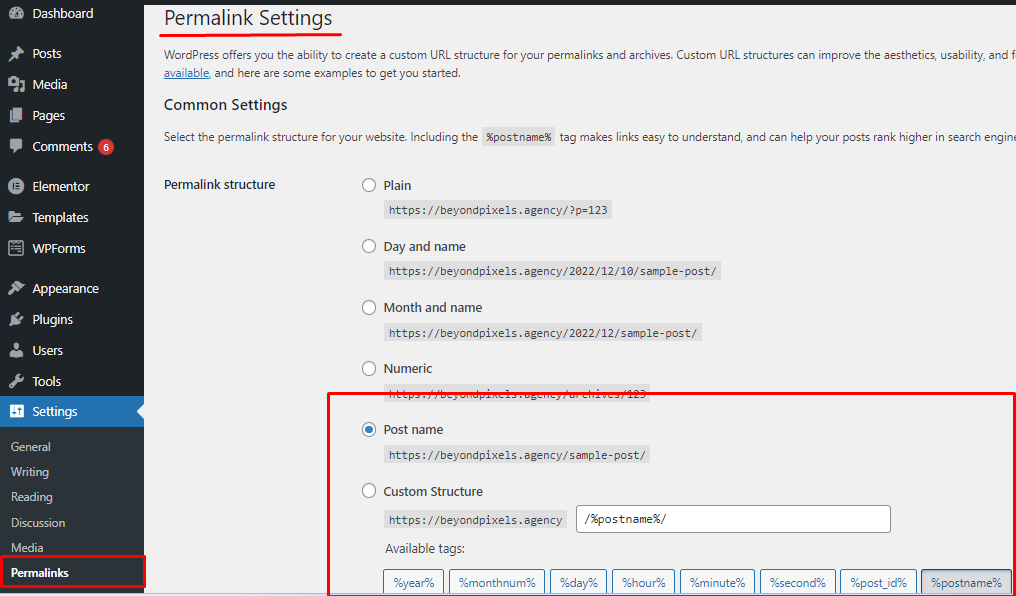
Website migration is a time-consuming task, but moving your WordPress site to a new host doesn’t have to be difficult.
That should do it; you’ve successfully transferred WordPress to a new domain. If you have any suggestions or notice any errors, please leave them in the comments!

It’s easy to get carried away with online gaming! Remember responsible bankroll management – crucial for enjoying the experience. Platforms like nustargame legit emphasize a classic approach, which can be a good sign of stability. Always prioritize fun & financial wellbeing!
Roulette probabilities are fascinating – so much relies on random chance! Seeing tools like AI Generator rapidly create visuals makes thinking about data presentation much easier – a huge time saver for analysis!
Really interesting analysis! Seeing tools like AI Agent democratize content creation is huge – especially with cross-device access. It’ll be fascinating to see how this impacts esports content!
Interesting points! Seeing how quickly visual content is evolving – tools like Sora 2 are game-changers. Accessibility across devices is key for creators now, too – web-based platforms win!
GameZoneApp? Ooh, a new app for my phone! Downloading it now. Hope it has some killer games. Fingers crossed! gamezoneapp
RTP slot PG Popbra… now we’re gettin’ specific! PG Soft slots on Popbra huh? I’ll check the volatility before investing any real money! What a mouthful… rtp slot pg popbra
If you are looking for Nesine alternatives with guarantees, Garantidennesine might be what your needs, I recommend you to take a look for more information: garantidennesine
PT888slot is where it’s at! Got some great wins here, the slots are on point and the website is decent so give it a shot pt888slot!
unlocker.ai – The Ultimate AI Tool for Bypassing Restrictions and Unlocking Content Seamlessly!
ph178 https://www.ph178.org
fbjili https://www.lafbjili.com
otsocasino https://www.ototsocasino.net
pin77 app https://www.pin77.tech
lodi777 https://www.itlodi777.com
peryaplus https://www.rsperyaplus.net
q777 https://www.proq777.net
philwin https://www.myphilwin.net
panalo99 https://www.uspanalo99.net
jl10 https://www.gojl10.net
sulit777 https://www.isulit777.net
pin777 https://www.agpin777.com
gtaya https://www.begtaya.com
jljl16 https://www.myjljl16.com
ph363 https://www.reph363.net
vph777 https://www.rvph777.org
Bigbunny Philippines: Experience Top Bigbunny Slots with Easy Login & Register. Get the Official Bigbunny App Download and Latest Link Alternatif Here. Experience top Bigbunny slots at Bigbunny Philippines. Easy Bigbunny login & register! Get the official Bigbunny app download and latest link alternatif today. visit: bigbunny
Peso888 Casino: The Best Online Casino in the Philippines. Easy Peso888 login, quick register, and Peso888 app download for premium slots and games. Experience Peso888 Casino, the best online casino in the Philippines. Secure peso888 login, fast peso888 register, and peso888 app download for premium slots today! visit: peso888
Pcsobet Official Site: Login, Register & Online Slots Philippines. Download the Pcsobet App for the Ultimate Casino Experience. Join the Pcsobet official site for the best online slots in the Philippines. Fast Pcsobet login & register. Start your Pcsobet app download for the ultimate casino experience! visit: pcsobet
Evotaya: The Best Slot Online in Philippines. Quick Login, Easy Register, Official App Download, and Secure Link Alternatif for Big Wins. Join Evotaya, the best slot online in Philippines! Experience quick evotaya login, easy register, official app download, and secure link alternatif for big wins. visit: evotaya
Phrush Casino Philippines: Secure Phrush Login, Register & App Download for Premium Phrush Slot Online Gaming. Experience the ultimate gaming at Phrush Casino Philippines. Access secure Phrush login and easy Phrush register to enjoy premium Phrush slot online games. Phrush app download is available for seamless mobile play. Join the top-rated Phrush Casino today for a safe, exciting, and high-reward gambling experience tailored for Filipino players. visit: phrush